
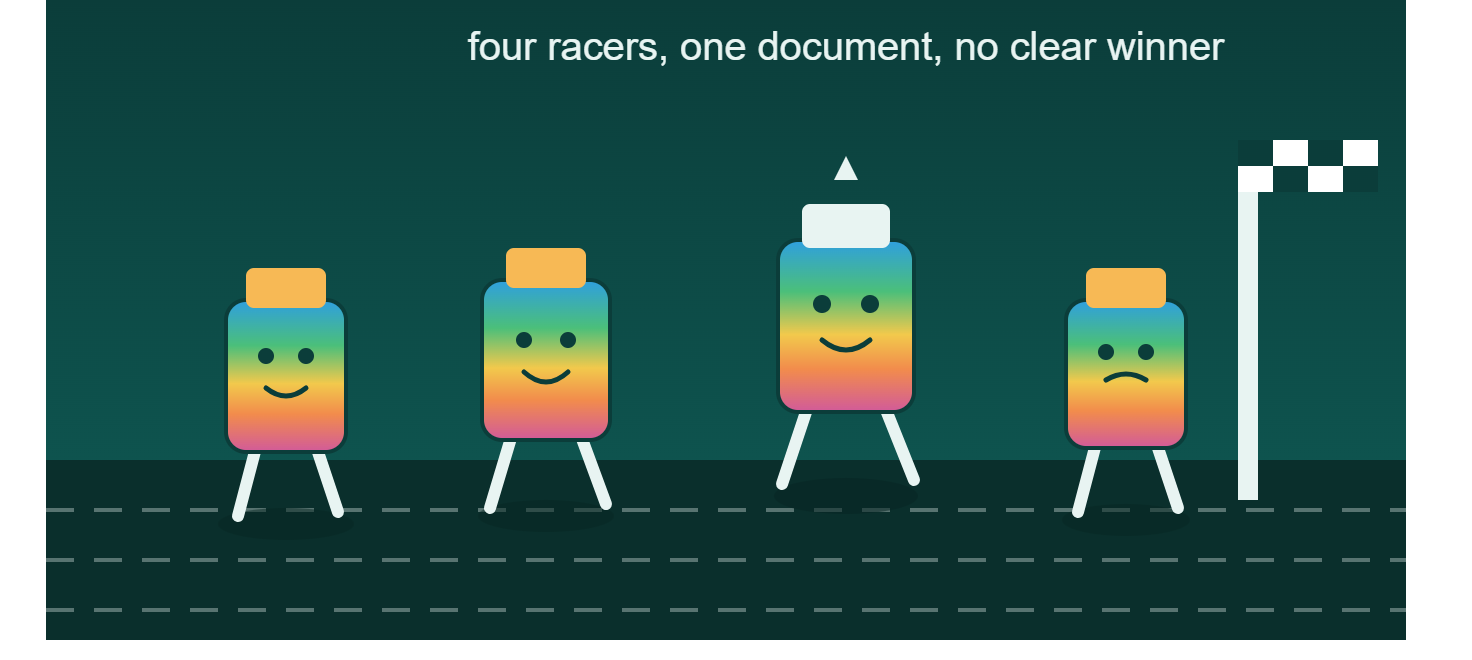
Running 4 Copilot Sessions at Once in Word: What Actually Happened
If you’ve ever wanted a document reviewed from four different angles at the same time, Word Copilot lets you try it. I opened the same file in four separate windows, give each one a different persona, and let them work in parallel. I tested this on a real document (an AI governance policy manual) and wanted to share both the setup and the honest results, because they weren’t what I expected.
Step 1: Open the same document in multiple windows
Word doesn’t let you have two windows on one document by default the way you might expect, but you can force it:
- Open your document normally.
- Go to View > New Window (or from the taskbar, right-click the Word icon and choose to open a new window). Repeat this until you have as many windows as sessions you want.
- Each window shows the same underlying file, and each one gets its own Copilot pane on the right.
- Arrange the windows side by side (Windows Snap makes this fast — four quadrants works well on a wide monitor).

At this point you effectively have four “views” into one document, each capable of running its own independent Copilot conversation.
Step 2: Give each session a different job
This is the part that actually makes the exercise worthwhile. If you ask four Copilot sessions to “review this document,” you’ll get four versions of the same feedback. The value comes from assigning each one a distinct role, so you’re getting genuinely different lenses on the same content rather than four echoes of one review.
Here are the four prompts I used:
- Session 1- Document Architect (structure, formatting, readability)
Act as an executive document architect. Review and edit this document to improve structure, formatting, and overall readability. You may directly revise content where needed to improve flow and presentation. Focus on reorganizing sections for logical progression, improving headings and subheadings, creating executive summaries where appropriate, converting text into tables, lists, or diagrams when beneficial, eliminating redundant content, and improving document navigation and scanning. After editing, provide a summary of major changes made and recommendations for any additional formatting improvements.
- Session 2- Executive Writing Editor (language, tone, clarity)
Act as a senior executive communications editor. Review and directly edit this document to improve clarity, professional tone, grammar and syntax, conciseness, persuasiveness, and executive-level communication. Rewrite content as needed to remove passive voice, eliminate unnecessary jargon, improve sentence structure, and make recommendations more actionable. Preserve the author’s intent while making the document clearer, more concise, and more compelling. At the end, summarize the most significant edits made.
- Session 3– Microsoft Solution Architect (technical accuracy and best practices)
Act as a Microsoft Solution Architect and industry advisor. Review this document against current Microsoft documentation, architecture guidance, implementation best practices, and adoption frameworks. You are authorized to edit and update the document to improve alignment with Microsoft recommendations — correcting technical inaccuracies, improving architecture guidance, and adding missing governance, security, AI/Copilot, and operational readiness considerations. Where changes are made, explain what was changed, why, and which Microsoft guidance influenced the revision.
- Session 4– Executive Advisor / Challenge Reviewer (business case and risk)
Act as a CIO, CFO, and Executive Sponsor reviewing this document for approval. Critically evaluate and edit the document to strengthen its business value and executive credibility. You may revise content as needed. Focus on business outcomes, strategic alignment, financial impact, risks and mitigations, success metrics, and change management. Identify weaknesses and directly improve them through edits, and add content where necessary so the document clearly answers why this matters, why now, what value will be delivered, how success will be measured, and what risks exist and how they’ll be managed.
I also set each session to a different underlying model (Claude and GPT options are both available in the Copilot model picker), partly out of curiosity about whether that would change the character of the edits.

Why this is worth doing when you need more than one thing done to a document
The reason this setup earns its complexity: a single Copilot session asked to “review this for everything” tends to blend concerns and produce shallow, generic feedback across the board. Splitting the work into four personas forces each session to actually specialize — structure and formatting, language and tone, technical/Microsoft accuracy, and business justification are genuinely different skills, and a reviewer (human or AI) that’s told to focus on just one of them goes deeper than one told to do all four at once. Run them in parallel, then reconcile the four sets of feedback yourself (or with a fifth “master reviewer” pass) and you get something closer to a real cross-functional review than a single monolithic prompt could produce.
The honest results with Copilot: it worked for research, not for simultaneous editing
Here’s where I want to be direct about what actually happened, because it’s the useful part of this post.
When I ran all four sessions with edit permissions at the same time, it looked like only one editing session could actually write to the document at a time. I had to retry the other three repeatedly before they’d go through — Word’s live co-authoring connection kept dropping, and I got errors like this:

I saw variations of that error repeatedly across the four sessions. Sometimes a session would fail to open an editing session at all, sometimes it would fail partway through. None of it corrupted the document (Copilot was consistent about not writing partial changes), but it also meant the “four sessions editing simultaneously” experience was inconsistent and required babysitting. To be clear: it wasn’t that the sessions failed to do the work, each one did search the document and build out a full draft of its recommended edits, plan and all. The bottleneck was specifically applying those edits back into the live document at the same time as three other sessions were trying to do the same thing.

So: don’t expect four simultaneous editing sessions on one document to run smoothly. What worked without any errors was running four sessions in parallel to research, review, or summarize different sections or reference documentation at the same time . No write contention, because nothing is trying to save back to the file. If your goal is four parallel analyses; rather than four parallel edits, this setup is genuinely solid. If your goal is four parallel edits to the same file, expect to retry failures, and treat the drafts each session produces as something you apply one at a time rather than something that happens automatically and concurrently.
The takeaway
Multiple Copilot windows on one document is a useful pattern. Just match the task to what it’s actually good at. Parallel personas for review and research: works cleanly. Parallel personas simultaneously writing to the same file: technically possible, but flaky enough right now that you should plan for retries rather than count on it.
Supporting Links
- Copilot in Microsoft 365 apps with Anthropic models — the official doc on the Anthropic model option you saw in the Copilot picker.
- Release notes for Microsoft 365 Copilot — covers the rollout of choosing Anthropic models when editing in Word.
- What is Microsoft Copilot? — general overview for readers new to Copilot.
- Co-authoring using Office for the web — explains the file-locking mechanics behind why simultaneous edits can contend with each other.
- Create files with Word, Excel, and PowerPoint Agents in Microsoft Copilot — relevant background on Copilot’s agent-mode editing.
- Copilot Hero Prompts — your own prompt-design piece, a natural cross-link for readers who want more prompt patterns after this post.





Leave a Reply